AI search visibility · November 9, 2026 · 7 min read
Google Merchant Center: fix price and availability mismatches


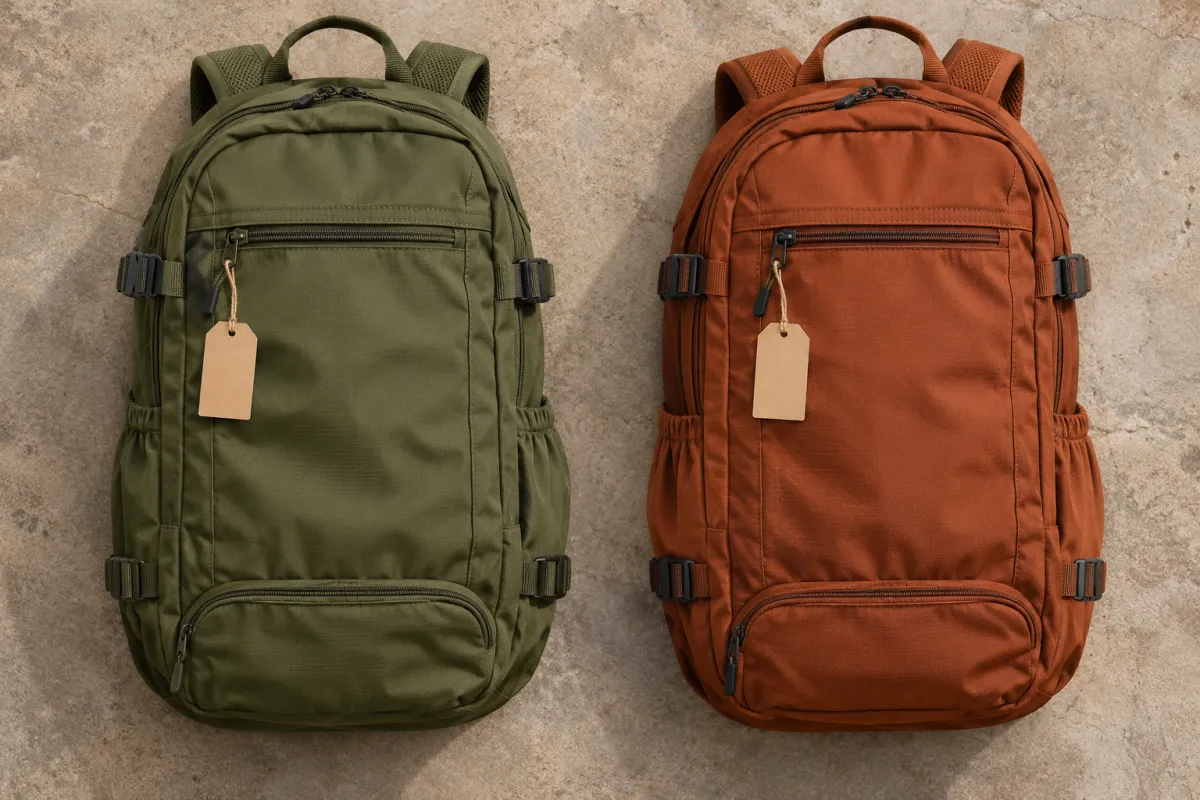
Merchant Center says a backpack is out of stock. Your product page says there are twelve left. Both statements can be true if Google is checking the rust backpack and your browser opens the olive one. Until you compare the same variant, market and moment in time, it’s easy to “fix” the wrong record.
Start with one affected item. A single reproducible discrepancy is more useful than editing a hundred prices from a list of warnings.
To fix a Google Merchant Center price or availability mismatch, open the affected item’s submitted URL as a signed-out shopper in the target market. Compare its exact variant, currency, effective price and availability across Merchant Center, the visible landing page, structured data and checkout. Fix the source that diverges, resync and verify the item’s status.
What does a mismatch mean in Merchant Center?
Google compares your submitted product data with what it can find on the landing page. A difference in price or availability can disapprove the affected item. The issue timestamp tells you when Google detected the difference, not necessarily what’s wrong right now. If the product was fixed since then, compare the timestamp with the current status and last processed update before changing anything else.
In Products → Needs attention, filter for the specific issue. Record one affected item ID, its submitted link, market, currency, price or sale price, and availability. Compare those with the item’s current status in All products. If the problem spans many items, pick a representative from each pattern: for instance, one sale item, one non-default variant and one item with market-specific stock.
Compare the four places that can disagree
Open the submitted link, including its variant parameters. Start without account, currency or location cookies. Use the target market’s normal storefront entry path and a test delivery address you’re authorized to use. You don’t need to place an order. Compare the same variant throughout; changing to the right variant manually after landing can hide the actual bug.
| Where to look | What to write down |
|---|---|
| Merchant Center item | ID, destination market, link, effective price and currency, availability, issue timestamp and latest processed data. |
| Visible landing page | Initially selected variant, displayed currency, current buyable price and stock or preorder message. |
| Structured data | The same variant’s Product and Offer values, especially price, priceCurrency and availability. Check for contradictory offers emitted by a theme and an app. |
| Cart and checkout | Whether the exact variant can be purchased for the target address and whether its item price matches the offer. Compare the line item, not the order total with delivery charges. |
Google recommends its Rich Results Test to inspect landing-page markup for price discrepancies; its merchant listing documentation explains the relevant properties. A successful markup test means the markup can be read and validated; it does not confirm that Merchant Center received the same values or that the item is approved. Check both systems. If the correct price appears only after client-side JavaScript or after interacting with a selector, compare the initially served HTML with the visible page as well.
Worked example: the feed is right, the link is wrong
Consider a fictional UK listing. PACK-RUST is £89 and out of stock. PACK-OLIVE is £79 and in stock. The Merchant Center item for PACK-RUST correctly says £89 and out_of_stock, but its link drops the variant selector and opens the default olive option. Copying £79 into the rust feed row would hide one symptom and create a false offer.
The fix is to generate a URL that opens rust directly, then confirm the first visible selection, the relevant Offer markup and purchase controls agree. Check that redirects don’t strip the variant selection. Don’t change the rust price or stock to fit the olive page. Google’s product variant documentation describes how variant URLs and grouped markup can identify the correct item. See our guide to structuring product variants if your connector doesn’t have stable variant IDs yet.
Fix the owner of the bad value
| Reproduced pattern | Where to fix it |
|---|---|
| Website and markup agree; Merchant Center has yesterday’s values | Update the primary data source and investigate its export, connector or processing delay. Compare processed item data with the file or API payload you sent. |
| Site switches currency or variant on arrival | Fix the submitted destination link or market routing. Verify the signed-out experience without relying on a stored preference. |
| Visible page is correct; structured data has another price | Correct the theme, app or template emitting the stale Offer. Retest representative variants, not only the item that raised the warning. |
| Mismatches cluster at sale start or end | Align sale price, effective window, time zone and storefront rollout. Check what happens both when the promotion starts and when it ends. |
| Site says in stock; checkout won’t sell to the address | Check regional availability and shipping restrictions before changing the feed. Don’t advertise stock that the intended customer can’t purchase. |
For availability, distinguish sold out from preorder and backorder. Google’s availability attribute guidance describes the supported values and how they should reflect the offer. Don’t set a buyable item to out_of_stock as a shortcut to pause advertising.
See Google’s automations guidance for the supported attributes and limitations. If your store connector owns the feed, fix the connector’s input or mapping rather than relying on a one-off edit that its next sync can overwrite.
Verify the recovery and watch the next change
- Confirm the corrected page in the target market. Open the exact submitted URL again, inspect the offer and test the affected variant’s checkout behavior.
- Resend the corrected data through its usual connector, file or API. Confirm Merchant Center has processed the expected values rather than assuming that a successful export is the same as a successful update.
- Follow the issue’s current review options. Google can recrawl the page automatically; where Merchant Center offers a website check, request it after fixing the source. Wait for status to change before treating the issue as resolved.
- Retest the next promotion or stock transition. Use a small watchlist that includes a sale price, a non-default variant and a region-specific item. A clean snapshot between changes doesn’t prove the update timing is sound.
Approval restores eligibility for the relevant listing or ad where other requirements are met; it doesn’t guarantee visibility or placement. For the wider discovery work, use our Google AI Mode shopping guide. If the product is missing in a different channel, see the separate ChatGPT Shopping troubleshooting guide. Loqara can help shoppers find products from a connected catalog on your store; it doesn’t submit fixes or request reviews in Merchant Center.
Frequently asked questions
Why is the mismatch still showing when the page looks correct?
Check when the discrepancy was detected, whether the updated item data was processed and whether Google checked the corrected page. Also test the submitted link signed out in the target market. Your own session may have a currency or variant preference that conceals the discrepancy.
Can a product pass Rich Results Test and still be disapproved?
Yes. Valid Product markup can describe a different offer from the one in Merchant Center. Compare the actual values for the same item, variant, market and currency; then verify the approval status in Merchant Center itself.
Should I edit the Merchant Center item manually?
For a genuinely manual data source, editing the item may be appropriate. For a synced source, prefer correcting the upstream record, rule or mapping so a later sync doesn’t reintroduce the problem.